
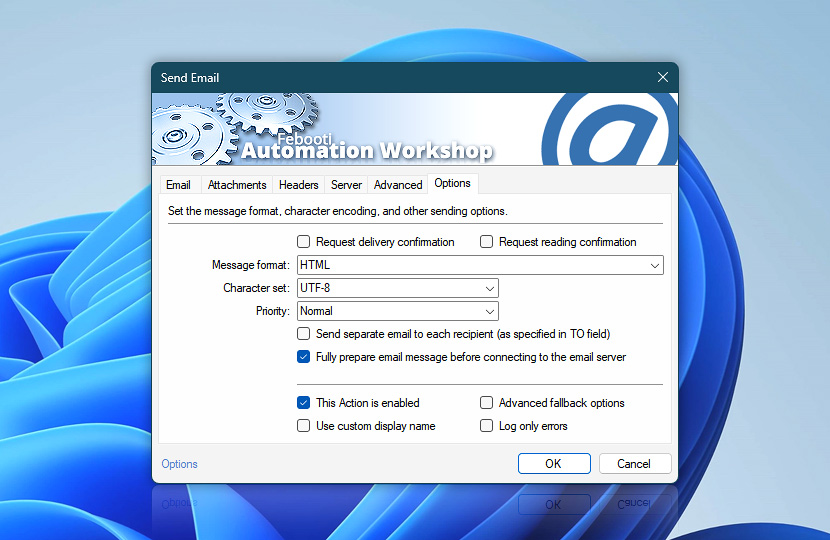
Choose the message format (e.g., plain text, HTML, HTML with embedded resources, or .EML), specify the character encoding, set the message priority, and request delivery or reading confirmation.
Additional powerful features include sending a separate email to each recipient specified in the To field (without disclosing other recipients) and verifying whether all attachments and other necessary files are in place before sending.
| Options | Details |
|---|---|
| Request delivery confirmation | Adds a flag to the email message header that requests the recipient's mail server to send a confirmation of email delivery. |
| Request reading confirmation | Adds a flag to the email message header that requests the recipient's email client to confirm that the message has been opened by the user. Depending on the email client, it may confirm this automatically or ask the user whether to send the confirmation. |
| Message format | Choose message format from the following options: Plain text, HTML, HTML with Embedded Resources and .EML file. Actual selection determines the treatment of message text provided in Email tab as well as enables and disables multiple parameters.
|
| Character set | Select from the most popular message encoding character sets or enter the necessary one, if it is not available on the list. |
| Priority | Set the email priority flag (Not set, Low, Normal, or High). |
| Send separate email to each recipient (as specified in the TO field) | Mark this checkbox to send a separate email to each specified recipient. The message header of the received email will contain only the To address of the actual recipient. |
| Fully prepare email message before connecting to the email server | Select this option to make the Send Email Action verify that all attachments are available and fully prepare the message in memory before sending. If any errors occur during preparation, such as a missing or inaccessible attachment or invalid parameters, the message is not sent. This option may use additional memory. If this option is disabled, the email server may time out while processing large attachments. Disable it only when sending attachments that are larger than the available system memory, which is rarely necessary. |
| This Action is enabled | An Action is executed only if it is enabled. Otherwise, it will be automatically skipped (completely ignored) from the Task flow. |
| Use custom display name | Rename this Action, to make a human-readable workflow that will help you to find, read, and make sense of the Task structure later. |
| Advanced fallback options | Manage the advanced fallback options—select which error types will lead to automatic execution of predefined workaround operations. |
| Log only errors | Do not log information and warning messages for this Action. It may be useful to keep the log file small and tidy on production systems. |
Embedded HTML?
When sending emails in HTML with Embedded Resources format, all referenced images, style sheets, or scripts must be available locally (or on a network path) at the time the email is sent. Automation Workshop will automatically embed these resources into the message.
The example below shows a basic HTML email body where an image and a CSS file are referenced from a local file system and a shared network location.
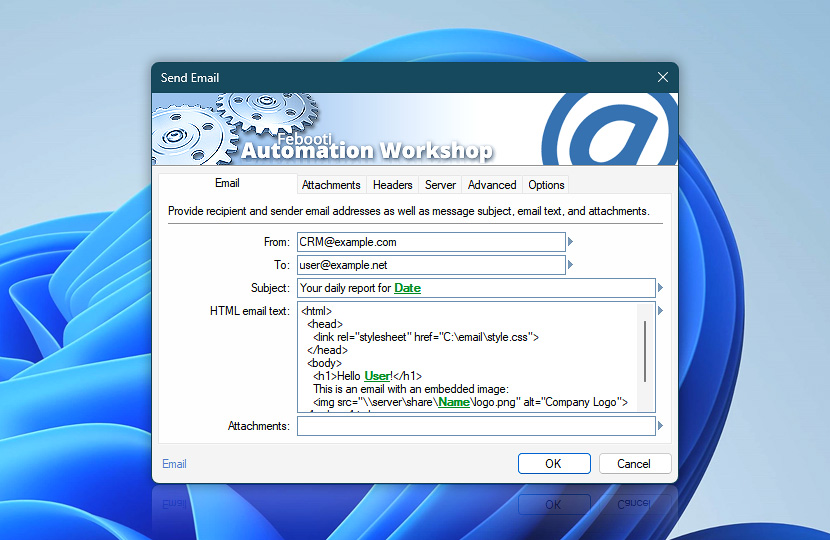
Once the email is sent and Automation Workshop successfully locates and embeds these resources, they are included directly in the message and do not require external loading by the recipient's email client.
Still have a question?
If you have any questions, please do not hesitate to contact our support team.